
Sketches are a designer’s scratch layer: shapes drawn on the field that are not part of the drill itself. Use them to plan a formation before committing performers to it, trace staging ideas, or store shapes you want to reuse. Sketches live on the count where you draw them, save with your drill file, and appear only while you are designing — never during animation, on printed charts, or in exported files.
Drawing Sketches with Sketch Mode
Turn on Sketch Mode with the switch in the top-right menu bar. While it is on:
- Every drawing tool — Line, Curve, Arc, Circle, Block, and the rest — lays down sketch points instead of performers. Draw exactly as you normally would; on Accept the shape becomes a sketch at the current count.
- The tool palette shows a sketch banner on each drawing tool so you can see the mode at a glance.
- Selection tools pick up only sketches, and the maneuver tools are unavailable — Sketch Mode is for drawing.
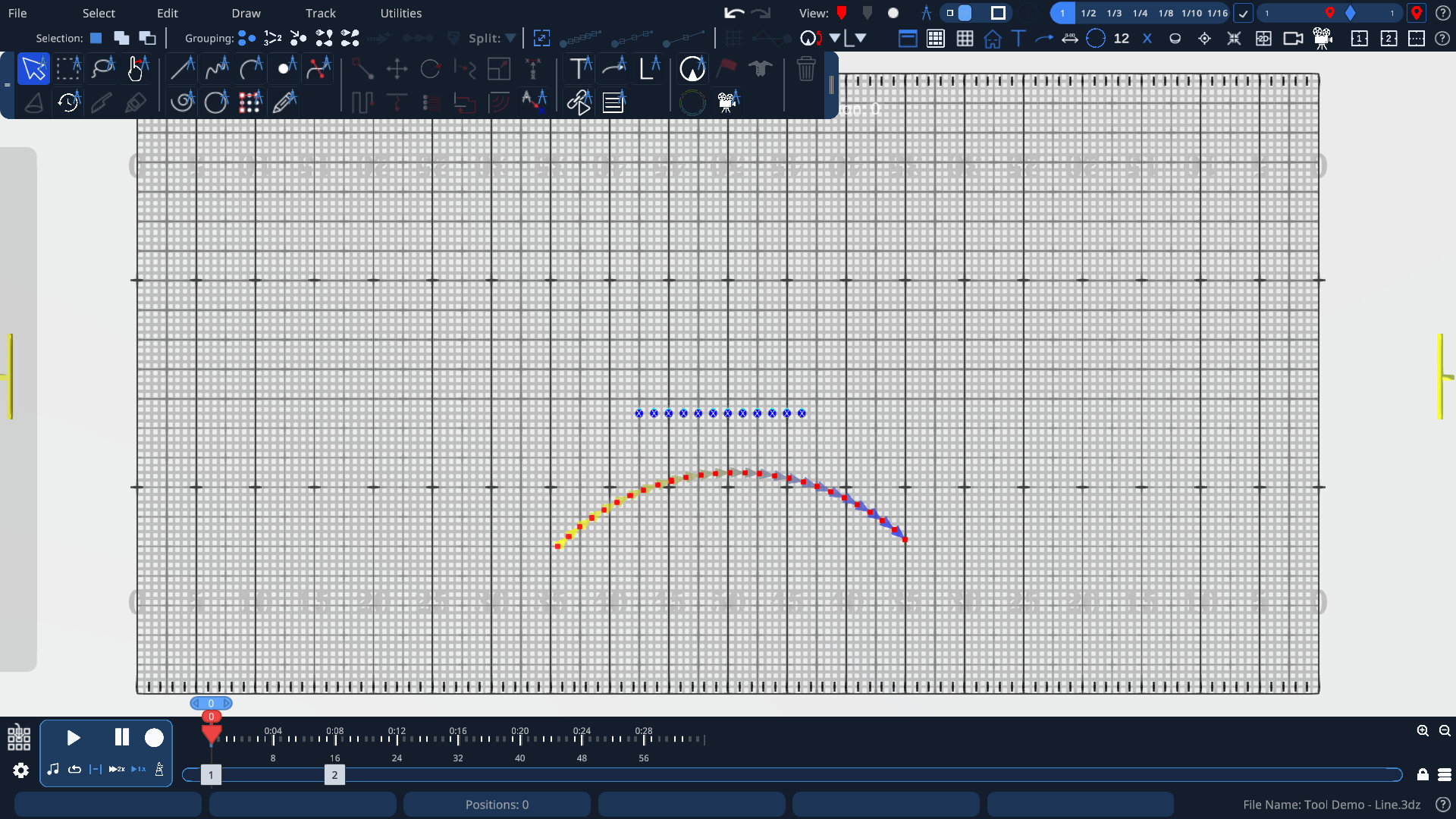
Turn Sketch Mode off to return every tool to normal. You can also create sketches without drawing: Edit → Paste as Sketch turns the performer positions on your clipboard into a sketch at the current count — handy for carrying a formation forward as a reference.
Applying Performers to a Sketch
The Sketch Tool (in the Edit menu as Transform to Sketch) assigns your selected performers onto a sketch shape:
- Select the performers to place.
- Choose the Sketch Tool. If the count has more than one sketch, the Sketch Selector lists them — Sketch #1, Sketch #2, and so on — with Identify to label each one on the field, Show/Hide toggles, and a per-sketch delete button.
- Pick the sketch to fill. The standard Spacing and Matching options control the interval and which performer lands where — the same controls as the drawing tools’ assign step.
- Accept. The performers take their new positions, and the sketch that guided them is removed — it has served its purpose.
The Sketch Book
The Sketch Book is a separate library file of saved sketch pages you can reuse across drills. Its ribbon appears with the Sketch Tool:

- Show: overlay the current sketch book page on the field.
- First / Previous / Next / Last: page through the book.
- Paste: copy the shown page’s shapes onto the current count as sketches.
- Add Selection: save the currently selected performers as a new sketch book page. More Options can build pages in bulk — one page from the current count, or one page per page tab, from all or selected sketches and performers.
- Change Sketch Book: switch to a different book file, create a new one, or copy an existing drill into a book.
- Delete Page / Delete All Pages: housekeeping for the book.
Jumping Between Sketch Pages
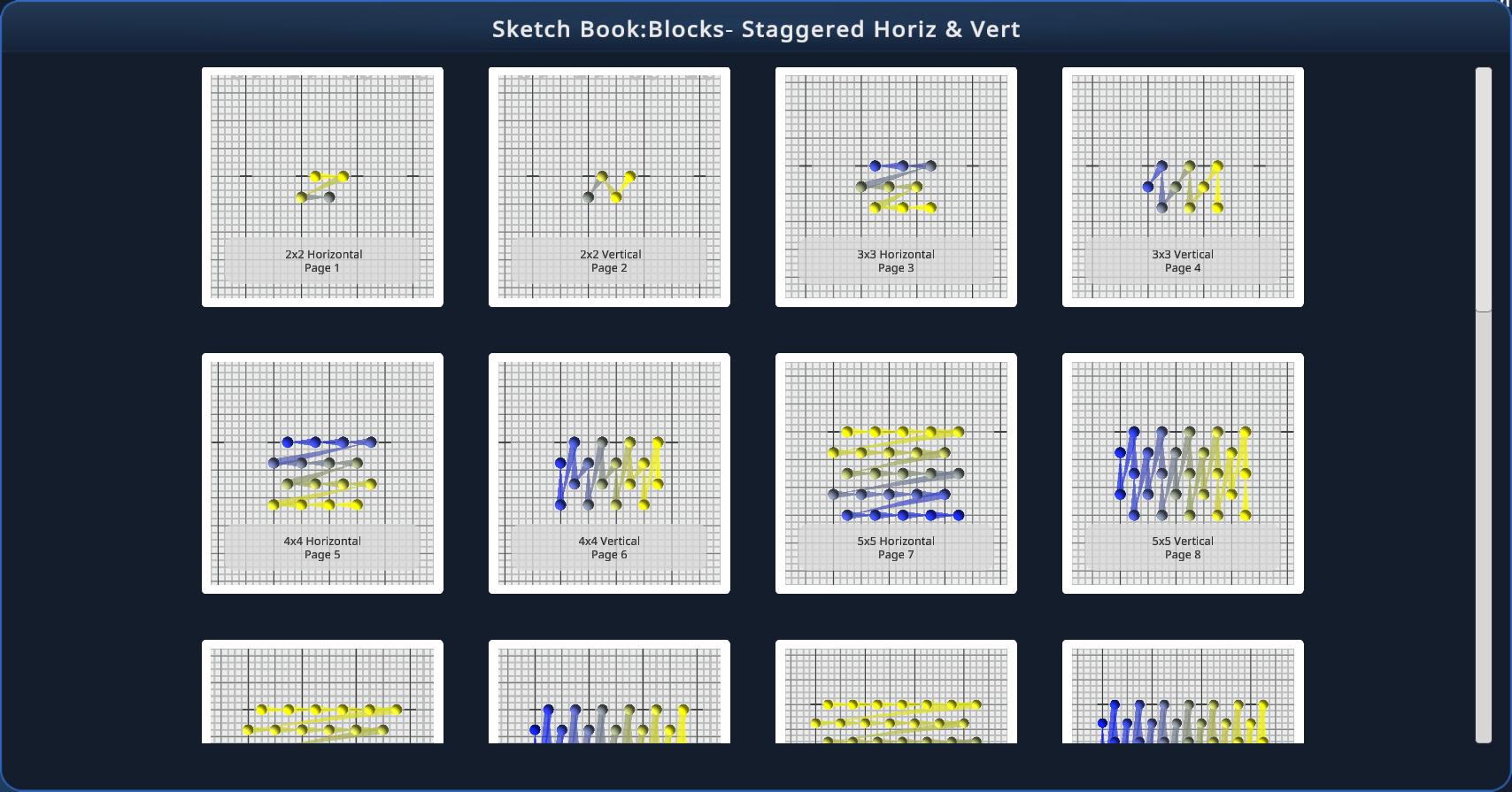
The sketch book contents button opens a thumbnail view of every page in the book — click a thumbnail to jump to it.
Removing Sketches
A sketch is removed automatically when performers are applied to it. To remove one manually, use the delete button in the Sketch Selector, or Cut with the Sketches option enabled. Sketches you leave in place are harmless — they stay on their count, invisible to playback, printing, and exports.
Post your comment on this topic.